
CrossMigrateDB Guide
Learn how to use CrossMigrateDB to migrate, replicate, and synchronize databases. This guide walks you through the complete workflow from connection setup to final validation.
Quick Overview
Complete a migration or synchronization session in three simple steps.
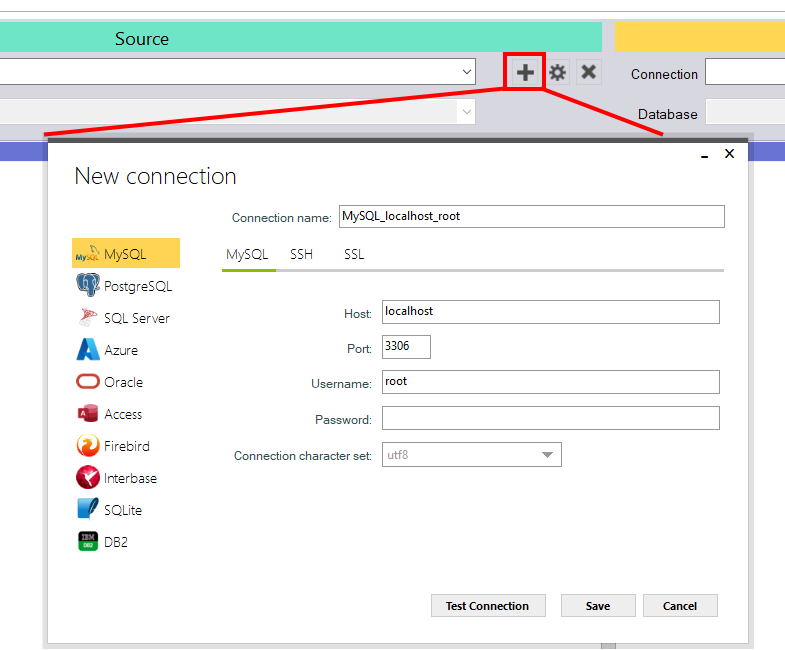
Add Source/Target Database Connections
Create and validate connections to the source and destination databases before starting a migration or synchronization session.
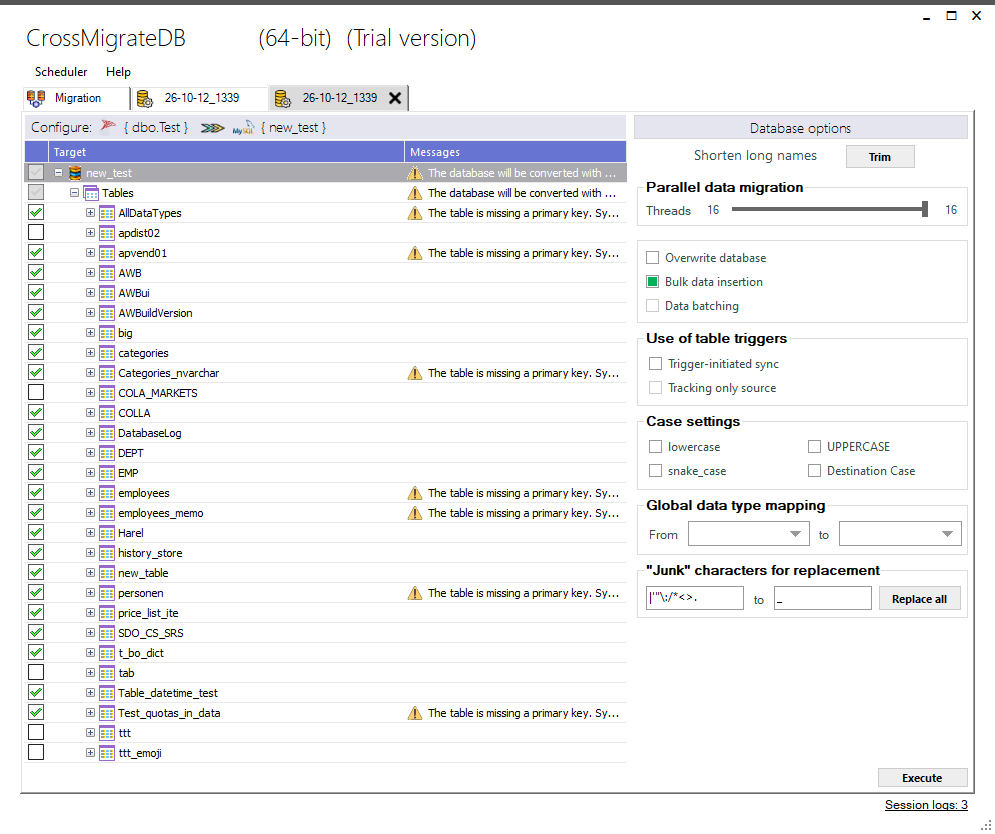
Configuration and Choosing Required Settings
Select tables, mappings, synchronization options, filters, transformations, and validation parameters.
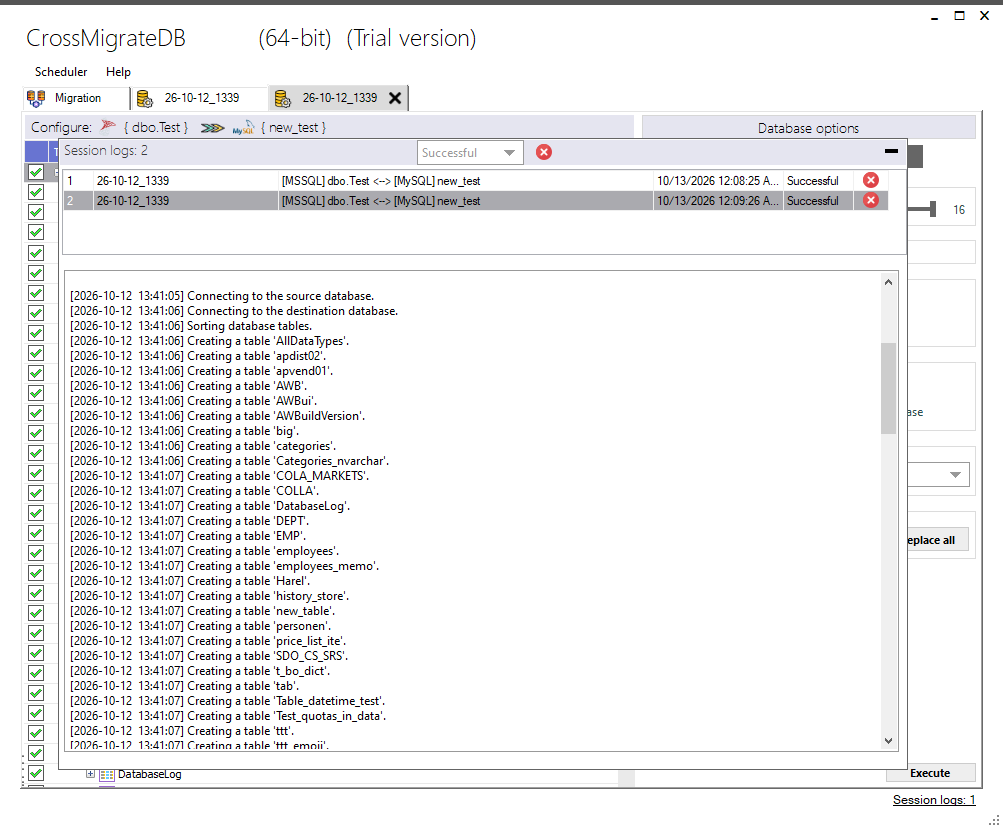
Run Migration or Synchronization and Check the Result
Start execution, monitor progress, review logs, and verify that data has been transferred correctly.
Step-by-Step Guide
Follow these four steps to complete a successful migration or synchronization.
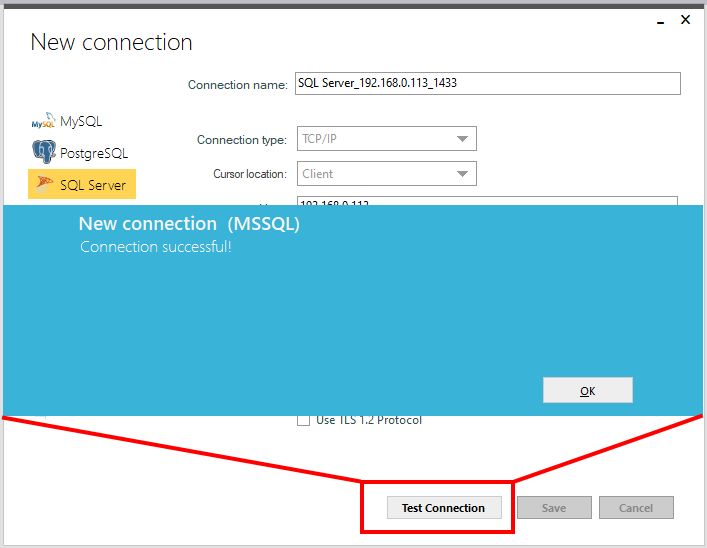
Create a new database connection, click on (➕) by selecting the database type and entering the required server and authentication details.
- Choose database type
- Enter host and port
- Provide credentials
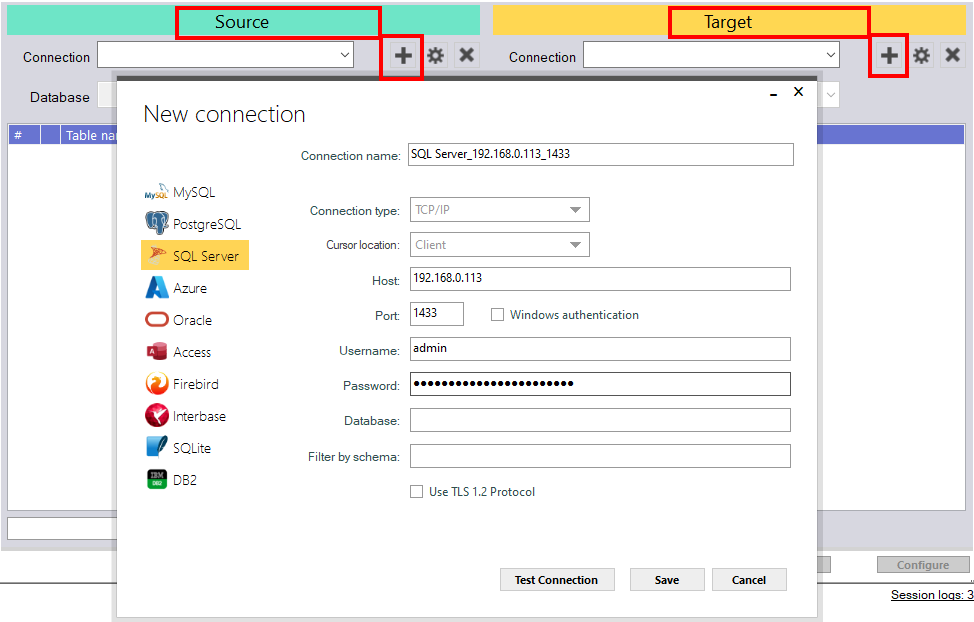
Use the "Test Connection" button to verify your credentials before saving the connection for future use.
- Validate connectivity
- Check permissions
- Confirm schema access
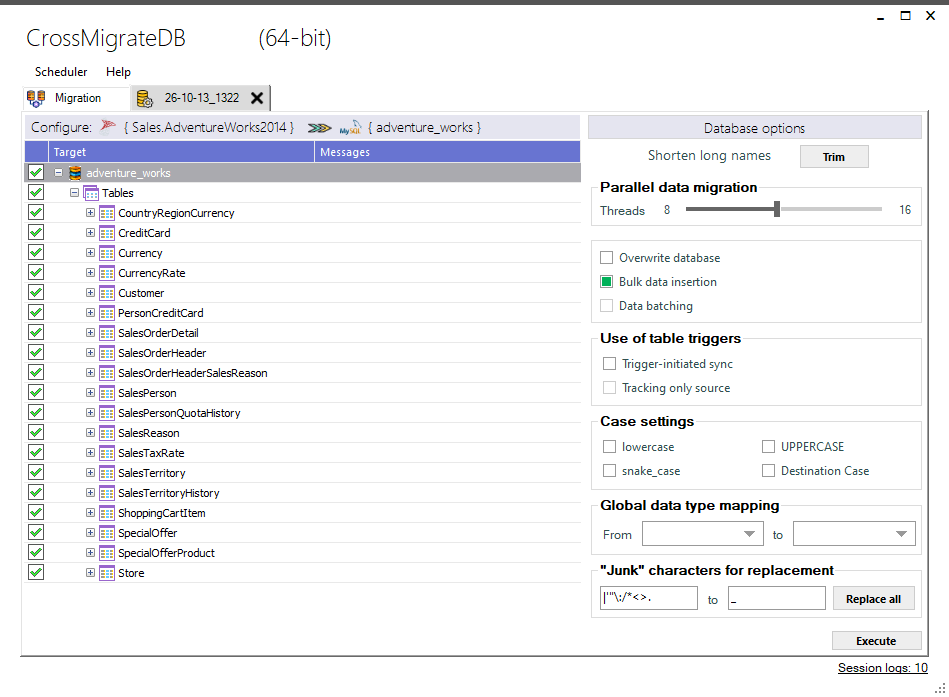
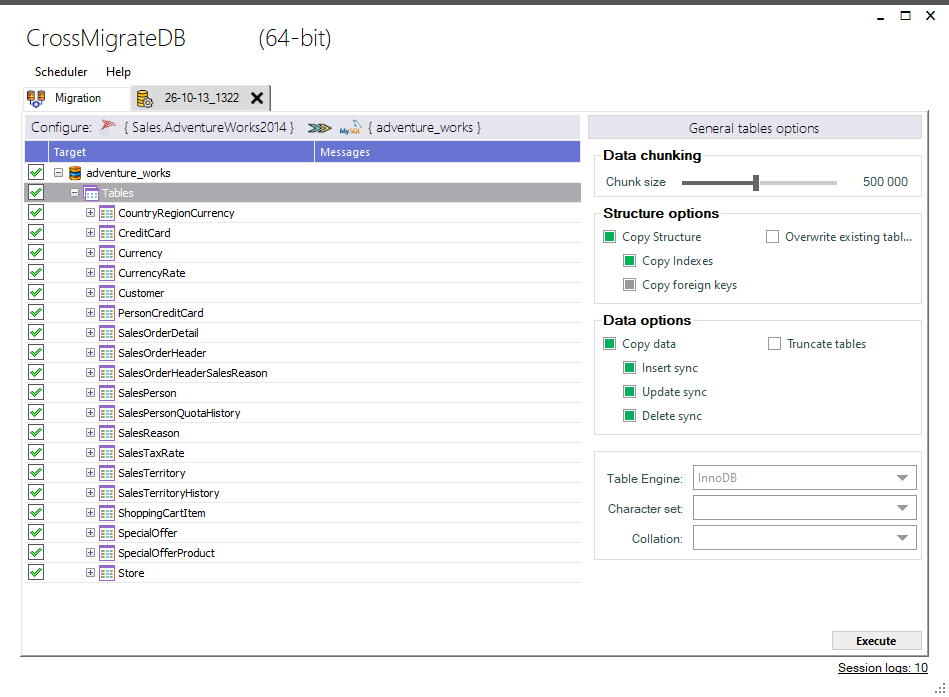
Define how data should be migrated or synchronized.
- Table and schema mapping
- Global type mapping
- Synchronization mode selection
- Filtering and validation options
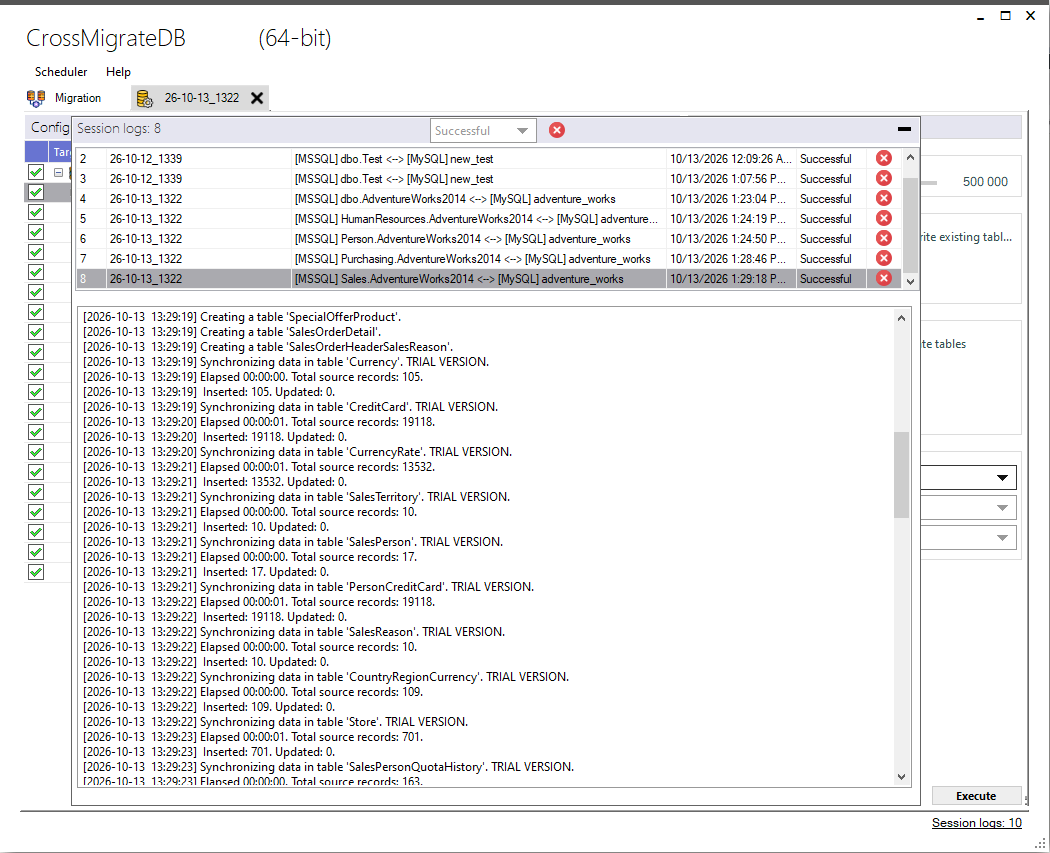
Run the migration session and monitor progress.
- Start migration process
- Monitor execution progress
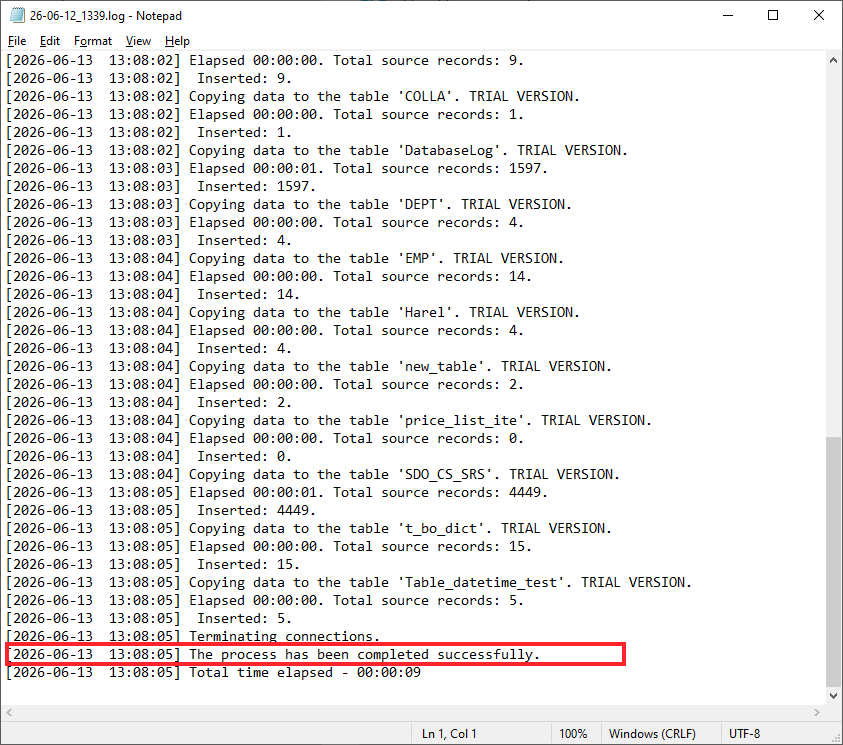
- Review logs and warnings
- Handle errors if they occur
Validate migrated data and ensure consistency.
- Check record counts
- Validate data integrity
- Review execution reports
- Confirm synchronization status
Best Practices

Test Connections
Always validate database connections before running migrations.

Verify Mappings
Ensure table and field mappings are correctly configured.
Backup Data
It is better to have backups before running production migrations.
Supported Databases
CrossMigrateDB supports a wide range of database systems.
MySQL

PostgreSQL

SQL Server

Oracle

SQLite

Microsoft Access

Microsoft Excel

Firebird

IBM DB2 for LUW

Visual FoxPro

Percona

YugabyteDB

Microsoft Azure

Supabase

dBase

MariaDB

SingleStore

Interbase

Neon

TiDB

Frequently Asked Questions
Does CrossMigrateDB support incremental sync?
Yes, both full and incremental synchronization are supported.
Can multi-threaded migration be used to increase speed?
Yes, CrossMigrateDB supports up to 16 parallel threads during database migration and synchronization.
Is logging available?
Yes, all migration sessions include detailed logs.
Can I automate my migrations or synchronizations?
Yes, you can schedule and automate migration/synchronization tasks.
Ready to Start Migration?
Download CrossMigrateDB and start migrating your databases in minutes.